This will likely require at least 2 parts so I decided to get part 1 out there right away, though, because it was quite helpful for me and you might need the same initial solution.
PROBLEM TO SOLVE
I use ubuntu touch but I also sometimes have to use android. Through all of that I always use ubuntu on all my other machines. The one thing that has been a bit of a pain in the buttocks was 2FA (two factor authentication) because I discovered that although most 2FA apps have ‘data export’ and ‘data import’ – they don’t seem to use the same json field mapping for all the parts. So what this means is this: if I want to move my 2FA data from my ubuntu touch 2FA app (export data) to my android 2FA app (import data) the json data doesn’t properly talk to each other. So, my only solution would therefore be to code or find code that could map them.
During the course of searching for such a ‘json convertor’ one person in the group asked a ‘kee question’…
WAS THE PROBLEM UNDER MY NOSE THE WHOLE TIME?
The person asked ‘Why don’t you use Keepass for your 2FA?
I was in disbelief that one of my favourite pieces of open source software might have been capable of doing this the whole time! Turns out… it was
Without blabbing any further, here is the setup for part 1 which is:
USING KEEPASSXC WITH UBUNTU DESKTOP FOR 2FA
This first part will get your migration moving and then in a follow up to this I’ll do Android and Ubuntu Touch.
1. Watch this great video on KeepassXC and the the TOTP feature
I always saw “TOTP” in my keepass menu but now I finally know what it means and does. This video will basically walk you through how to set up Keepass for your first website. For the QR reader software, though, I recommend skipping over his and following my tool below.
2. Grabbing QR code from your desktop – without a camera
You’ll need to be able to grab a QR code from your desktop browser screen without a camera so that you can extract the ‘secrets’ from the QR on your screen. Unlike a mobile device this would normally be quite a pain, but with a simple browser like firefox, you can get a handy little app that will fake-out a camera for you and extract what you need each time.
Watch this video about QR Code Reader extension so that you can do what you need with the QR part.
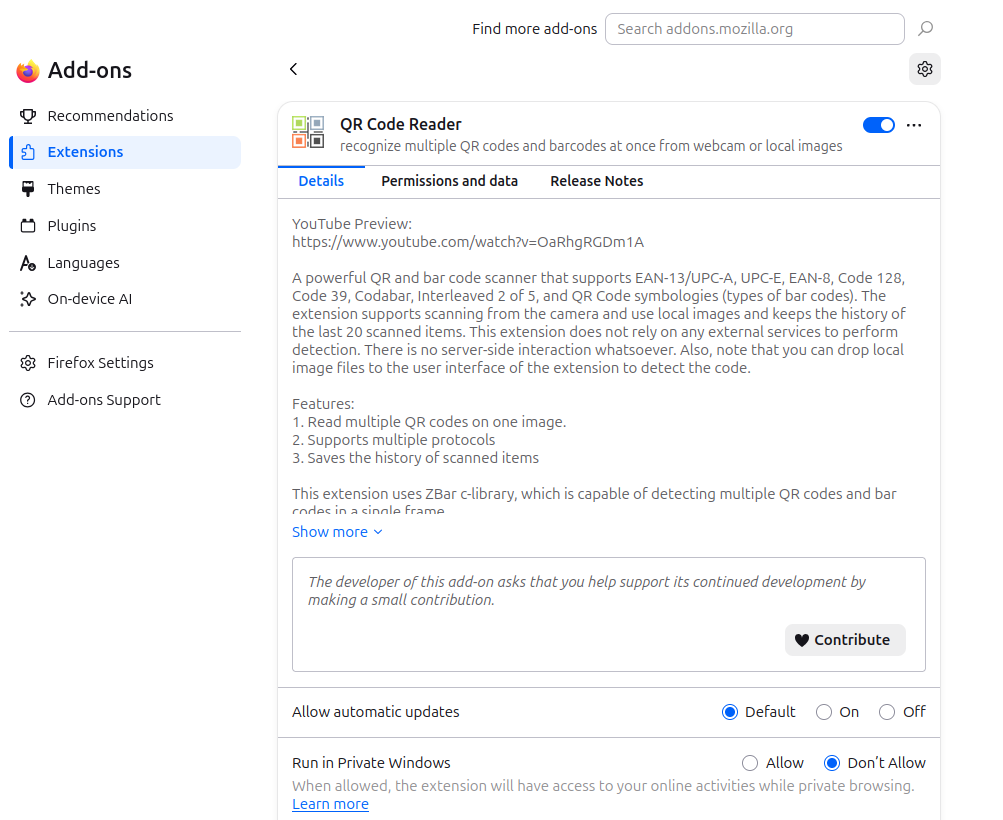
To be clear, here is a screenshot of the Firefox extension as well as how it looks so you can know you got the right one:
Hope that helps and (hopefully) stay tuned for part 2 when I try to make this work with Ubuntu Touch….
